

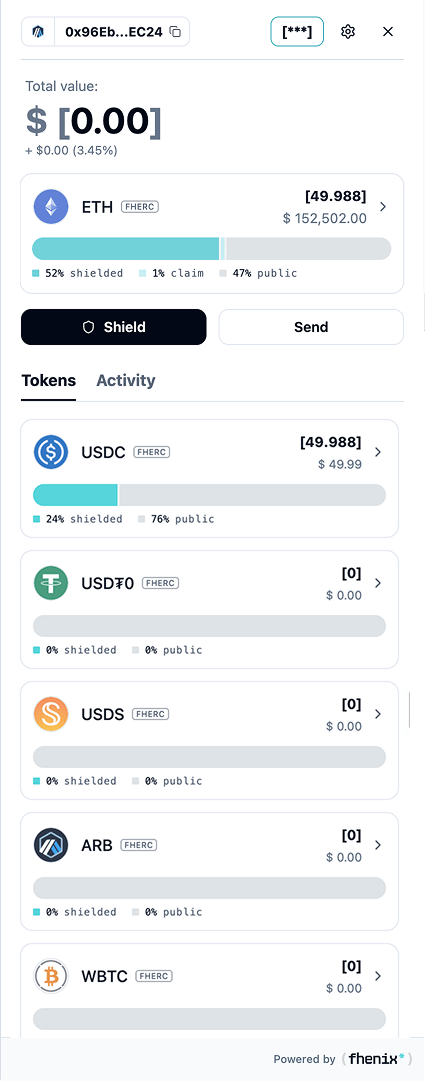
See your supported assets and understand how much is private, public, or still pending. To open it, connect your wallet and open the wallet panel. On your first connection, the wallet prompts you to create an ACP.
Screen components
- Wallet header. Check the connected address and network. Use the copy icon to copy the address. The header also contains privacy controls, Settings, and Close.
- Total value. The summary shows a portfolio value and a change indicator. A masked value or N/A means some information is unavailable. It does not mean your balance is zero.
- Pinned asset. The card above the main actions gives one asset a prominent place in the panel. It shows the token, its type badge, its balance and value, and its balance bar.
- Shield and Send. Start shielding an asset or open the transfer screen.
- Tokens and Activity. Switch between your asset list and recorded wallet activity.
- Token rows. Each row shows a token, its type badge, balance, value, a balance bar, and a right arrow for token details.
- Balance bar. The legend under each bar splits the holding into shielded (private), claim (an unshielded amount waiting to be claimed), and public. These percentages describe holdings, not yield.
Steps
1
Check the connected address
Confirm the address in the wallet header.
2
Open a token
Open Tokens and select an asset for its details.
3
Start an action
Use Shield or Send.